Help
Build your first proposal
From price list to a published proposal: the outline, the live preview, pricing from your price list, versions and a preview link.
Updated
On this page
A proposal in Propozit is a slide deck: a cover, the client's challenge, your approach and scope, your prices, and an agreement. You fill it in with a form beside a live preview of what your client will see.
Set up your price list
Proposals copy their prices from your price list, so a later change never alters a proposal you made.
- Select Price list in the sidebar.
- Select Add a product. Give it a name, pick a type (a product, a fixed-price project, time and materials, a subscription, an hour bundle or an hourly rate) and enter a price for each currency you sell in. Leave an amount empty to show "on request".
- Select Save changes.
A product can also have an Article number and a Photo; see Quotes for building work and for products.
Add example products fills an empty price list with examples for your business type.
Long price list in a spreadsheet? Import it as CSV.
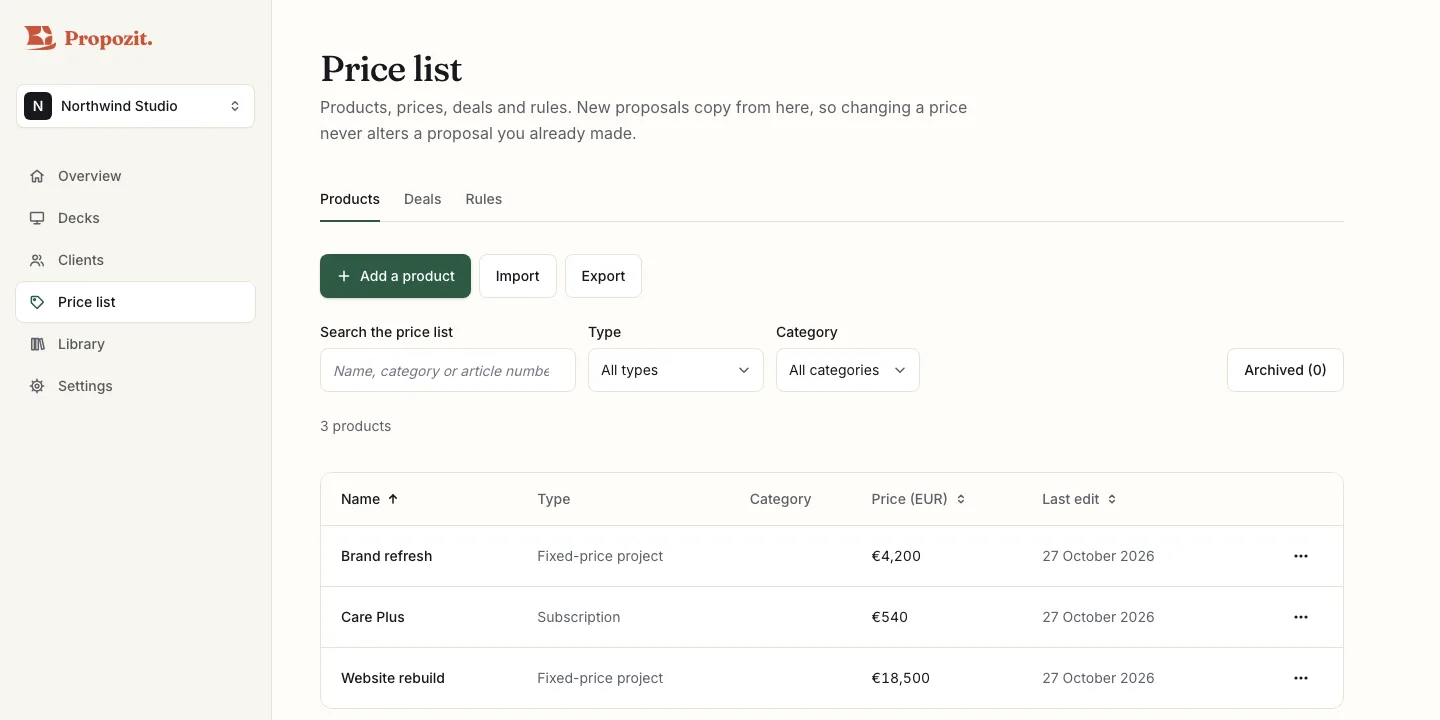
The Deals tab holds payment plans and commitments, and Add the standard plans adds four common payment plans; the Rules tab holds rules such as "Add Branding and the SEO audit is free". Only owners and admins can change the price list; members can use it in their proposals.
Create a proposal
- Select Decks in the sidebar, then New proposal. If it opens on Describe it, select Pick a type. To have the AI draft the proposal from a description instead, see Describe a proposal and get a draft.
- Pick Blank to start from the standard outline. To have the deck built for you, pick a type of work instead: see Your first proposal in eight steps.
- Enter the client's company and a title, and check the language, currency and VAT. Valid until is optional. Your clients fill in their defaults.
- Select Next. The draft is saved. To fill in the slides yourself, open it from Decks, or select Open in editor under the list of steps.
A Blank proposal starts from the standard outline: cover, challenge, approach, scope, pricing, payment schedule, agreement and thank you.
Fill it in
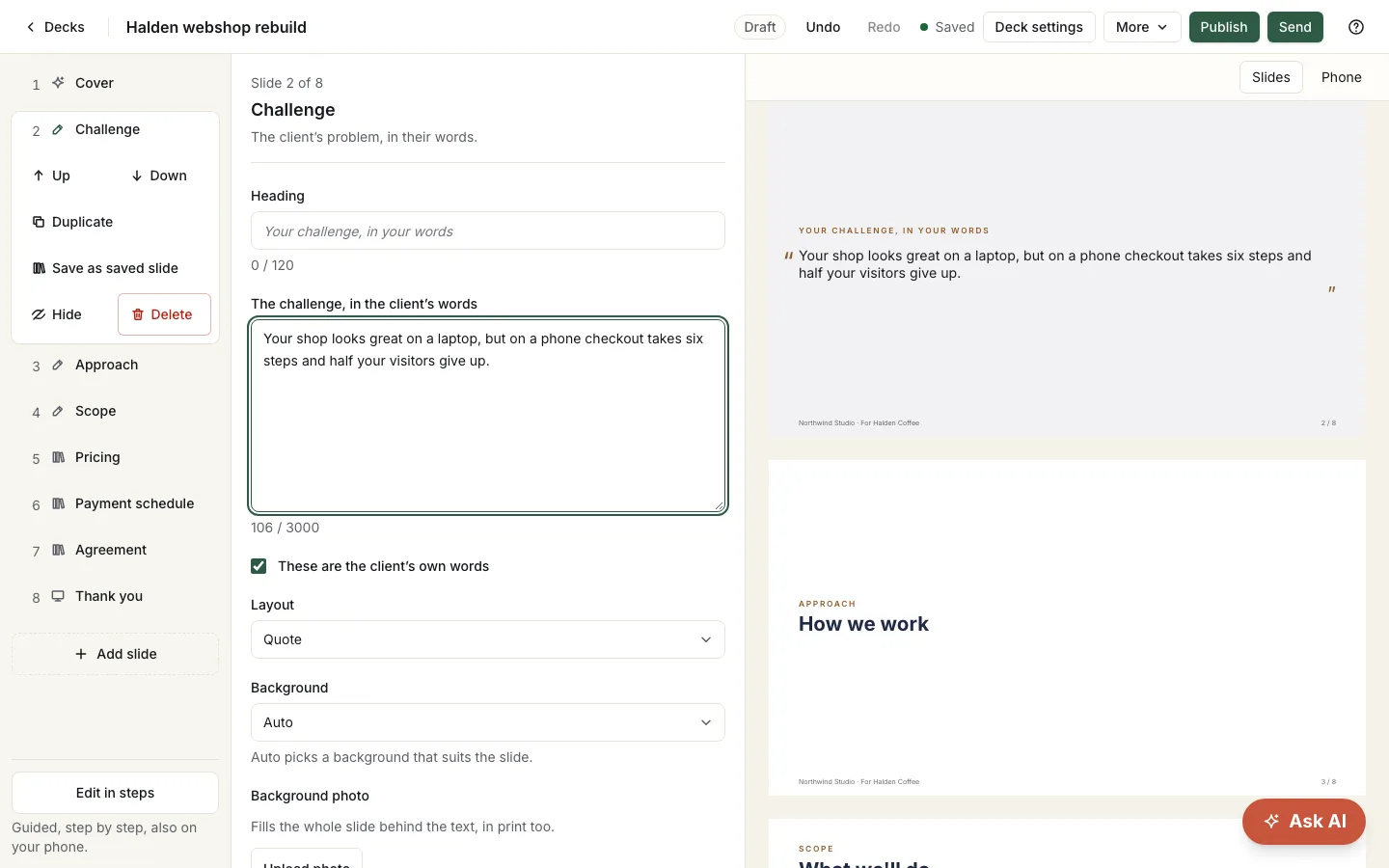
The editor has three columns: the slides on the left, the form for the selected slide in the middle, and the live preview on the right.
- Select a slide to edit it. Empty fields show a hint of what to write.
- New proposals open with the challenge as a quote, in your client's words. The Terms slide can add a next-steps card with the date the offer is valid until.
- Add slide adds a slide after the selected one; the cases slide picks from your case library.
- The selected slide shows Up, Down, Duplicate, Hide and Delete. Drag a slide, or press Alt and an arrow key, to move it.
- Edit in steps, under the slides, opens guided steps.
- "Splits into 2" in the slide list means the content continues on a second page.
- Undo and Redo work for your last 100 changes to slides, pricing and deck settings in this session. Valid until is saved at once and is not part of undo.
Add your prices
- Select the Pricing slide.
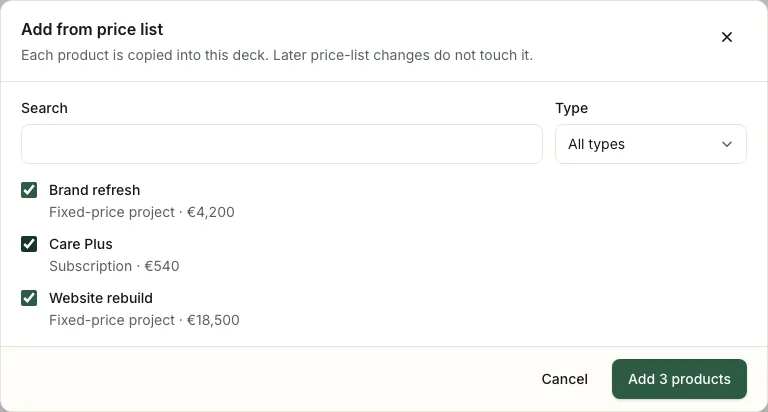
- Select Add from price list, tick the products and select the Add button. A product without a price in this proposal's currency is shown but cannot be picked.
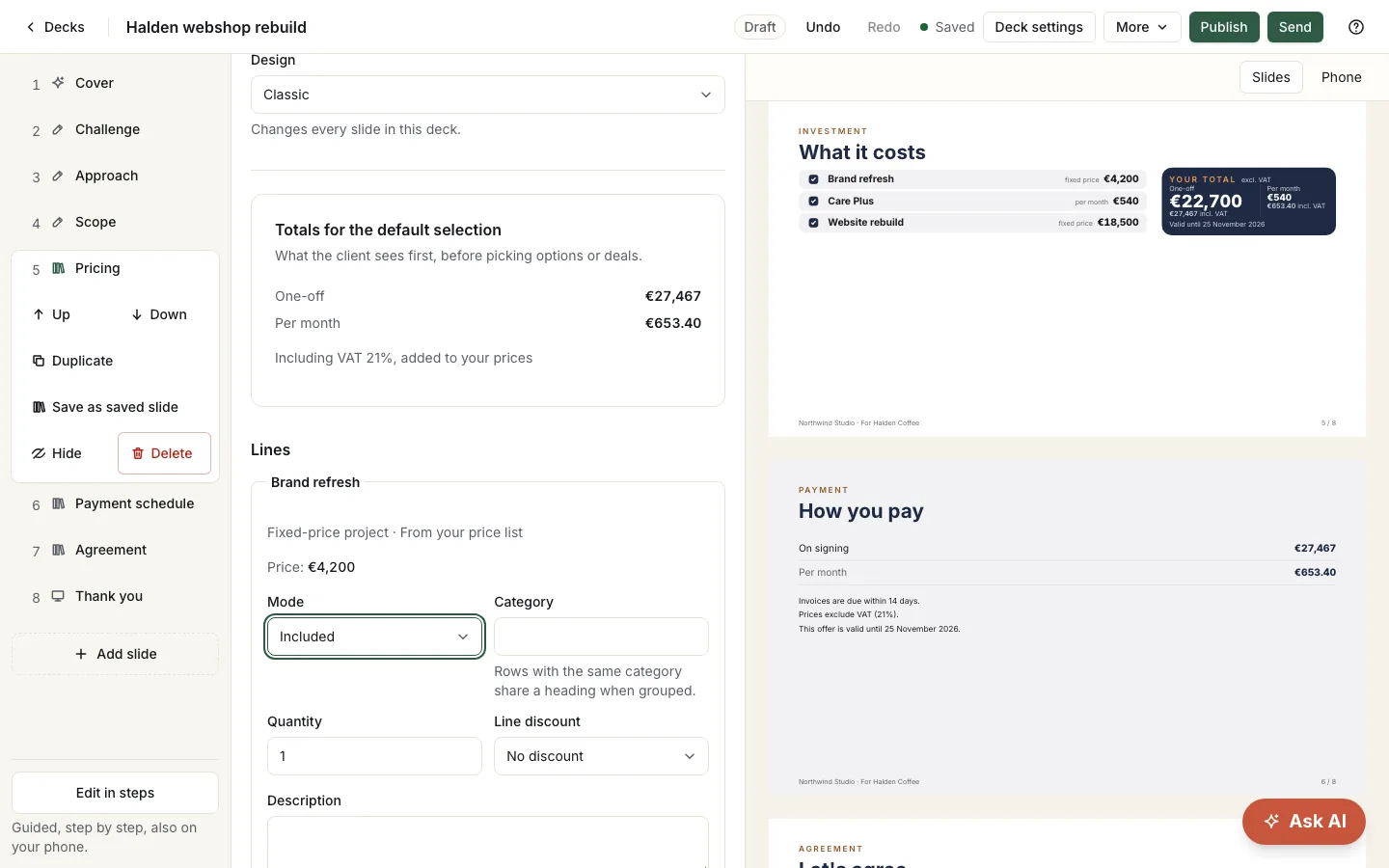
- Set each line to Included, Optional or Choice, and switch on the deals you want to offer. For payment plans, due days and VAT, see Payment plans, VAT and the checks.
The totals above the lines are calculated the same way the client's deck calculates them. Anything that would stop a client from accepting, such as a line without a price, is listed under Fix before publishing.
Publish and preview
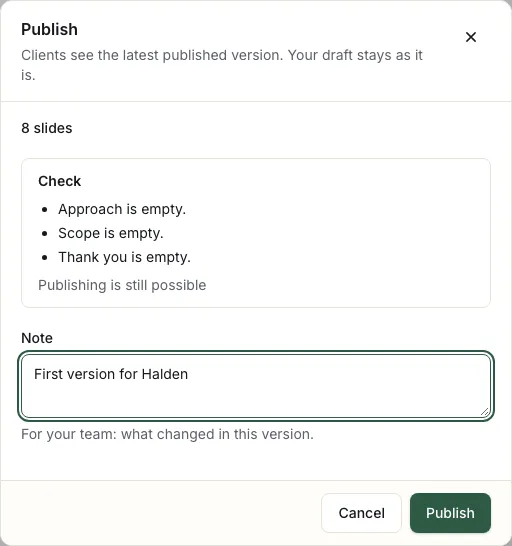
- Select Publish, add a short note for your team, and select Publish again. Each publish is a new version; publishing an unchanged proposal does not make one.
- Under More in the top bar, Preview link opens the proposal as a client will see it. The private link works for two hours.
- Versions (also under More) lists every published version and the history of your changes. Restore this point brings the proposal back to an earlier state; the state you leave stays in the history, so you can go back to it.
Ready to send it? See Send a proposal and get it signed.
If two people edit at once
If someone else changes the same proposal while you work, the editor says so and keeps your changes. Overwrite with mine keeps both when you changed different slides, and asks before replacing their work. If your browser closes before a change is saved, the editor offers to restore it the next time you open the proposal.
Related
- Set up your brand Upload your logo, set four colours and two fonts, and watch the deck preview change as you edit.
- Invite your team Send an invitation by email, pick a role, and manage who has access from the Team tab.
- Reuse your work: cases and saved slides Short and long cases with a tagline, numbers and a client quote, and saved slides you insert from Add slide.
- Send a proposal and get it signed Send with your own message, unlock with an email code, signing drawn or typed, the signed PDF, and the activity panel.
- Your first proposal in eight steps Templates per type of work, up to eight steps, options and prices from your price list, payment plans, the checks, and your own standards.
- Describe a proposal and get a draft What to write, what the AI picks, the Chosen, Not found and Check these lists, the daily limits and where your words go.
- Quotes for building work and for products The business type, the two quote templates, units, grouped prices with subtotals, photos and article numbers, provisional sums and extra work, and how VAT works.
Proposals your clients actually say yes to
Propozit is free to start, with no card needed. Create your account today and see the plans on the pricing page.