Help
Send a proposal and get it signed
Send with your own message, unlock with an email code, signing drawn or typed, the signed PDF, and the activity panel.
Updated
On this page
Send a ready proposal from the editor. Your client opens it with an email code, picks options and signs in the deck, and you see what was read.
Decide who can open it
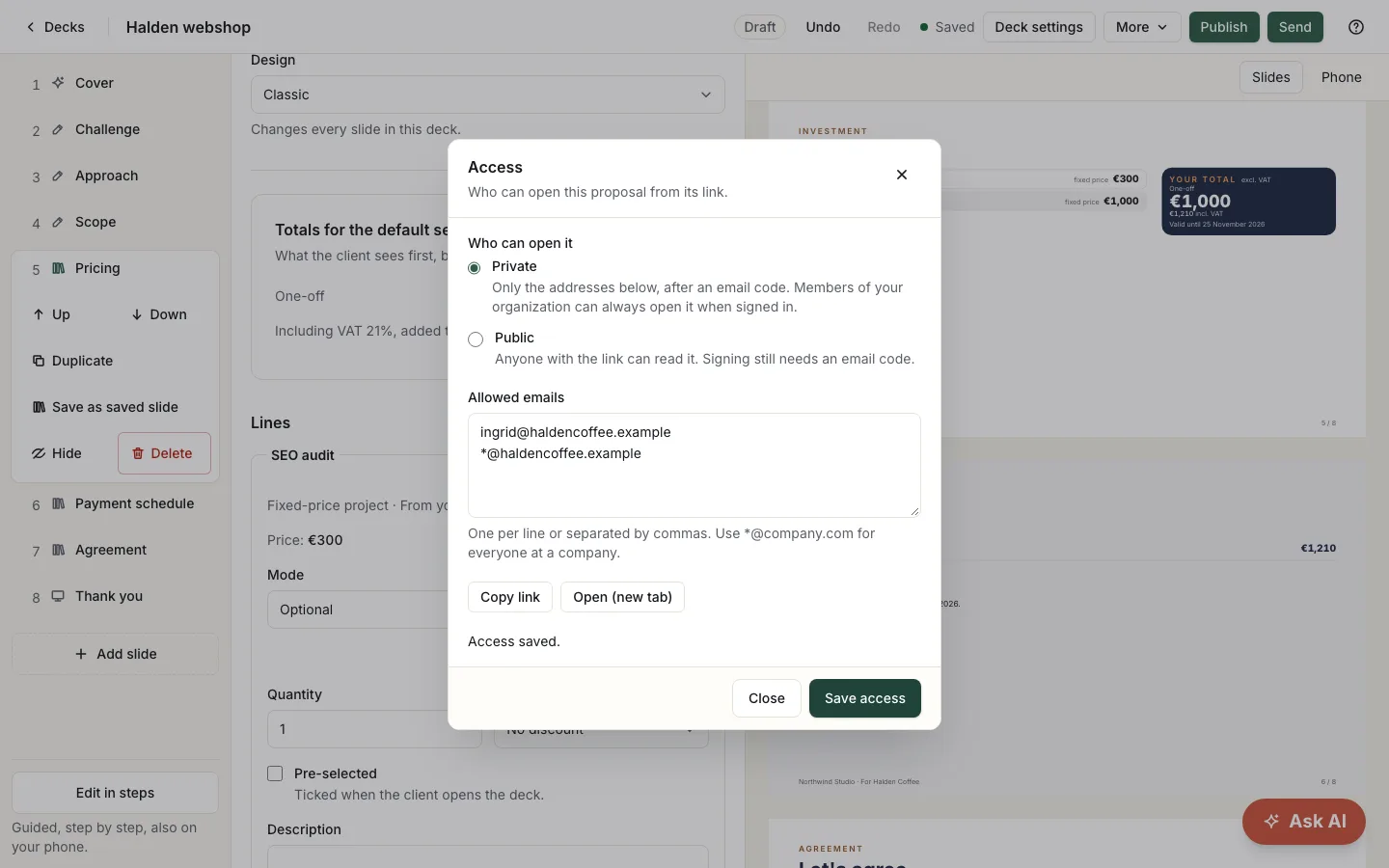
- In the editor's top bar, select More, then Access.
- Choose Private (the default) or Public.
- Private: only the addresses in Allowed emails can open it, after an email code. Add
*@company.comfor everyone at a company. - Public: anyone with the link can read it. Signing still needs an email code.
- Private: only the addresses in Allowed emails can open it, after an email code. Add
- Select Save access. Copy link and Open (new tab) are there too.
Signed-in members of your organization can always open the link without a code. Their visits are never counted.
Your first Copy link counts as a send, like the first email; Free has 3 a month.
Send it
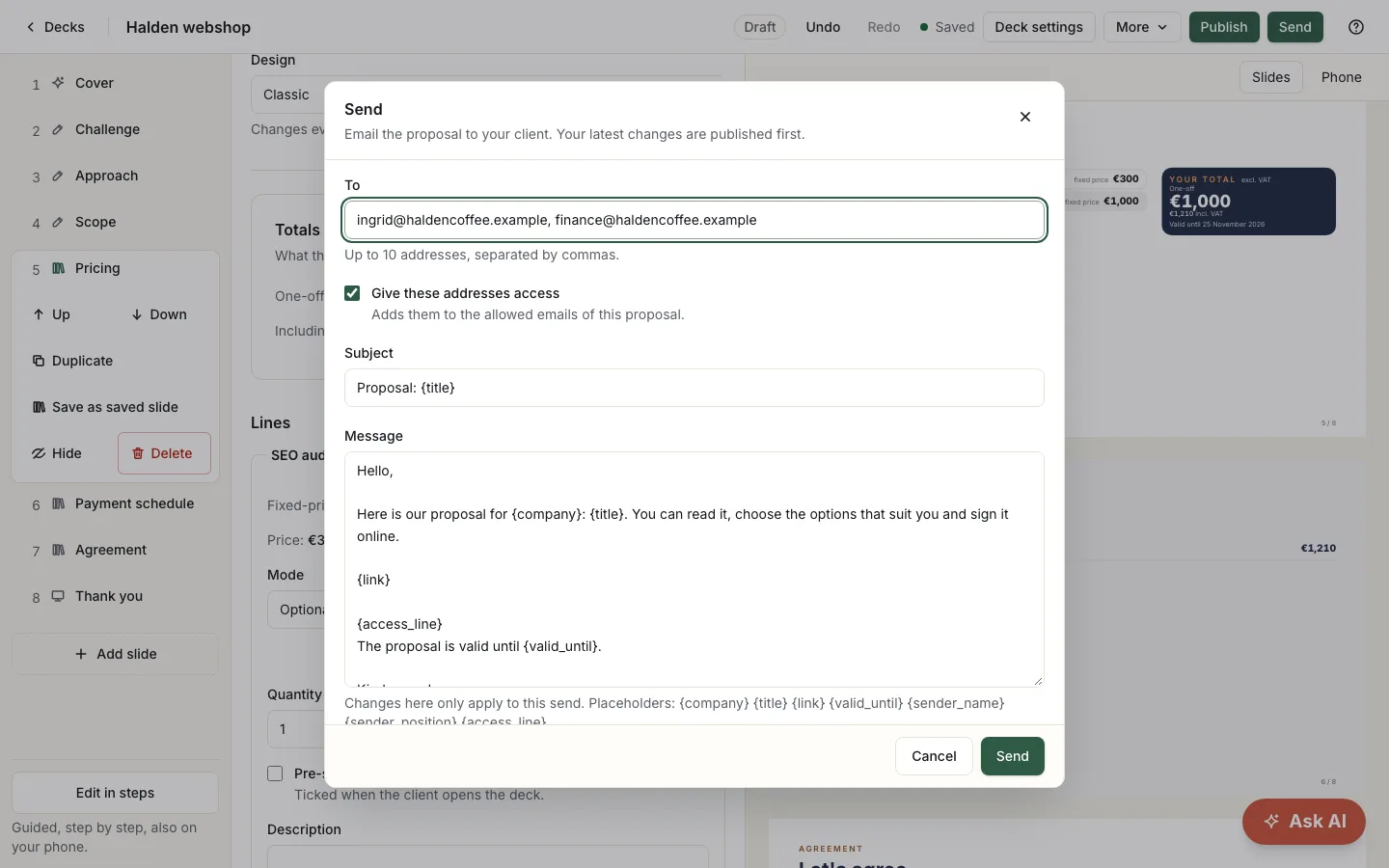
- Select Send. If you changed the proposal since you last published, it is published first. Price problems, such as a line without a price, are listed and stop the send, just like Publish.
- Enter up to 10 addresses in To, separated by commas. Give these addresses access adds them to the allowed emails.
- Edit the subject and message if you like. Placeholders such as
{title},{link}and{valid_until}are filled in for each send, and{link}on its own line becomes a button. Changes apply to this send only. - Select Preview to see the email, then Send.
The email comes from your organization's name "via Propozit"; replies go to the proposal's contact person. Addresses that could not be reached are listed, with the link to send yourself.
What your client sees
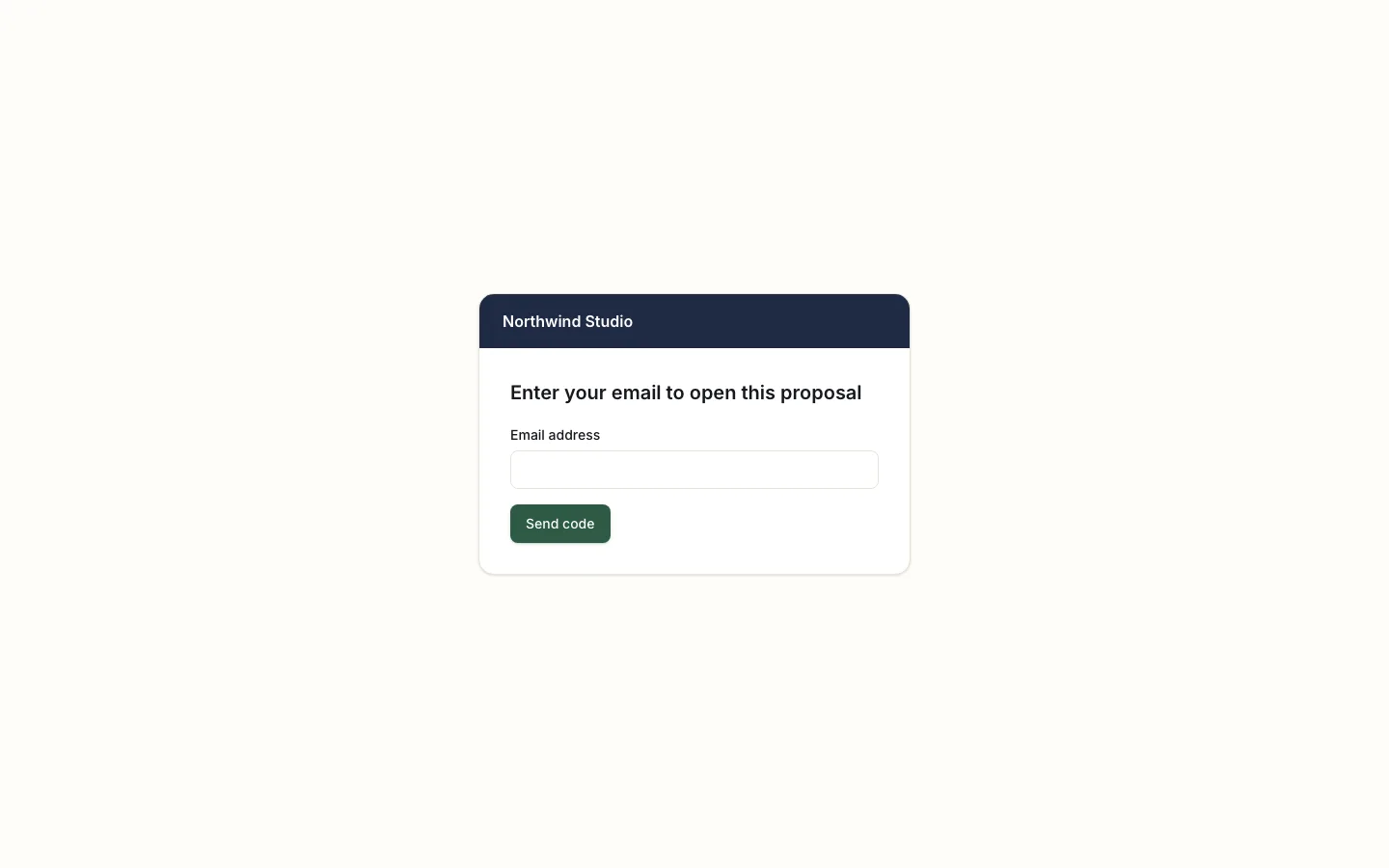
Your client opens the link and enters their email address. With access, they get a 6-digit code that works for 10 minutes. The screen looks the same either way, so it never tells who has access.
On a phone the proposal becomes an easy scroll. On the pricing slide they tick options and pick plans, including how to pay when you offered several payment plans, and the totals update as they go. The payment slide follows their pick: what is due when, and within how many days invoices are due.
Download PDF prints the whole proposal, one page per slide.
Signing
On the agreement slide, your client selects Sign. The sign panel shows a summary of what they chose. They tick I agree, check their name (filled in when the proposal has a contact) and enter their role, and draw their signature or type it.
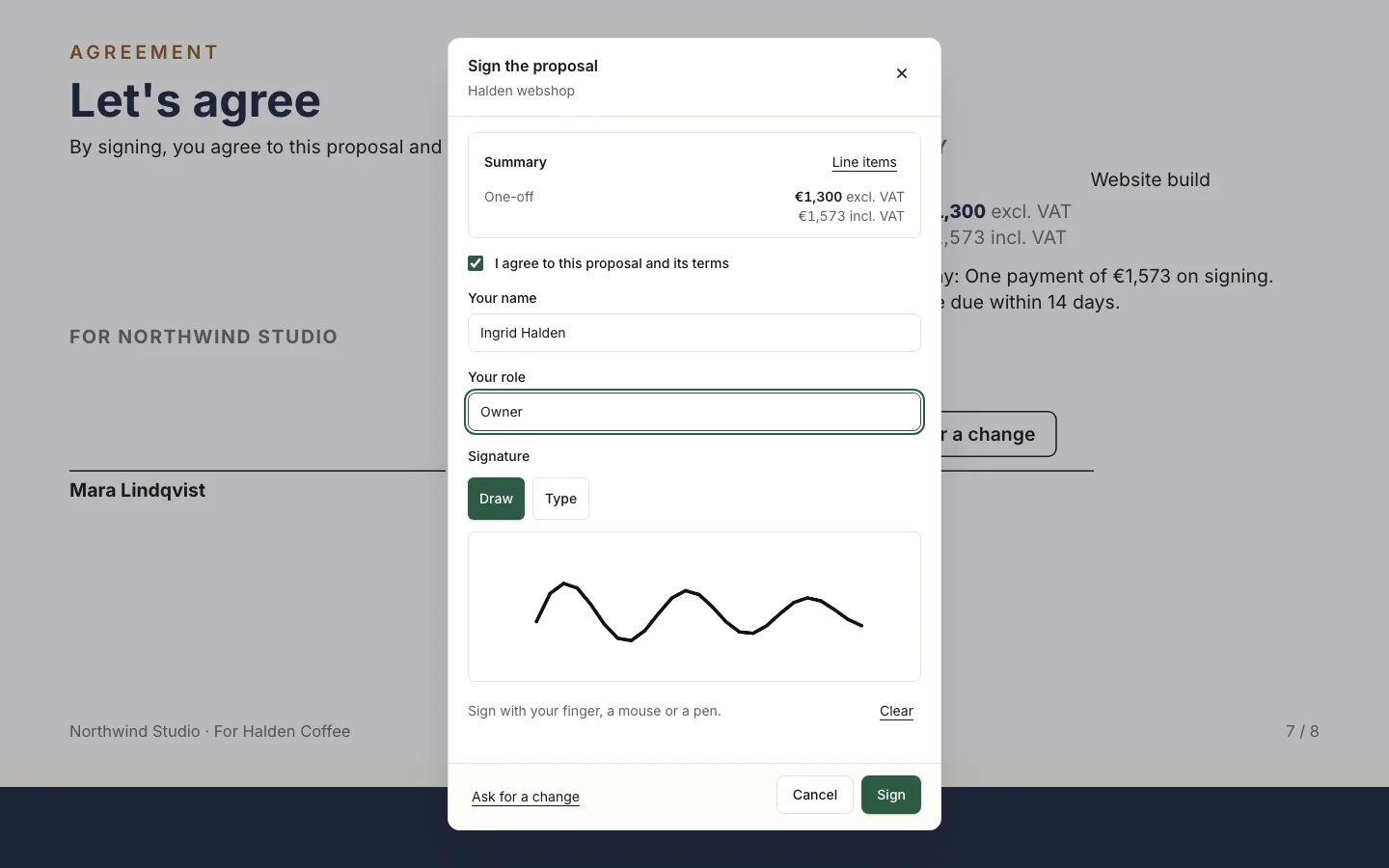
If the totals changed since they opened it, such as an offer that ended, they are asked to check and sign again. After signing:
- the proposal is read-only and shows who signed and when;
- your client gets "You signed …" and you get "… signed …", both with the signed PDF attached;
- the PDF holds your company details, the chosen lines, the totals, the VAT, the payment plan with how and when they pay, the terms, both signatures, the time, the email it was signed from, and a fingerprint of the signed record.
After the valid-until date, the proposal can be read but not signed. Extend it in Deck settings.
To place your own signature on the agreement in advance, draw it or upload a PNG under Signature on your profile page, and turn on Show our signature from the start in the agreement slide.
When the client asks for a change
Beside Sign, your client sees Ask for a change. They write a message, with a topic if they like, and then see a note with the date.
The contact person gets an email (with no contact: the owners and admins). Reply to it and your answer goes to the client. In the editor, a banner shows who asked and what, and the proposals list shows Change requested.
- Reply by email starts an email to the client.
- See all opens Activity.
- Mark as handled clears it; the next open request shows, if there is one.
A new published version or a signature clears it too. Asking never stops signing.
To leave it out for a client, turn it off in Deck settings; new proposals follow Settings → General.
When the client declines
Next to Sign, your client can select Decline this proposal and say why. The person who last sent it gets an email with the reason, and the list shows Declined. To reopen it, select Publish again, with or without changes.
Follow what happens
The proposals list shows each proposal's status: Draft, Published, Changed since, Sent, Opened, Change requested, Declined, Signed, Payment due, Paid or Expired. The first time your client opens the proposal, the contact person gets an email.
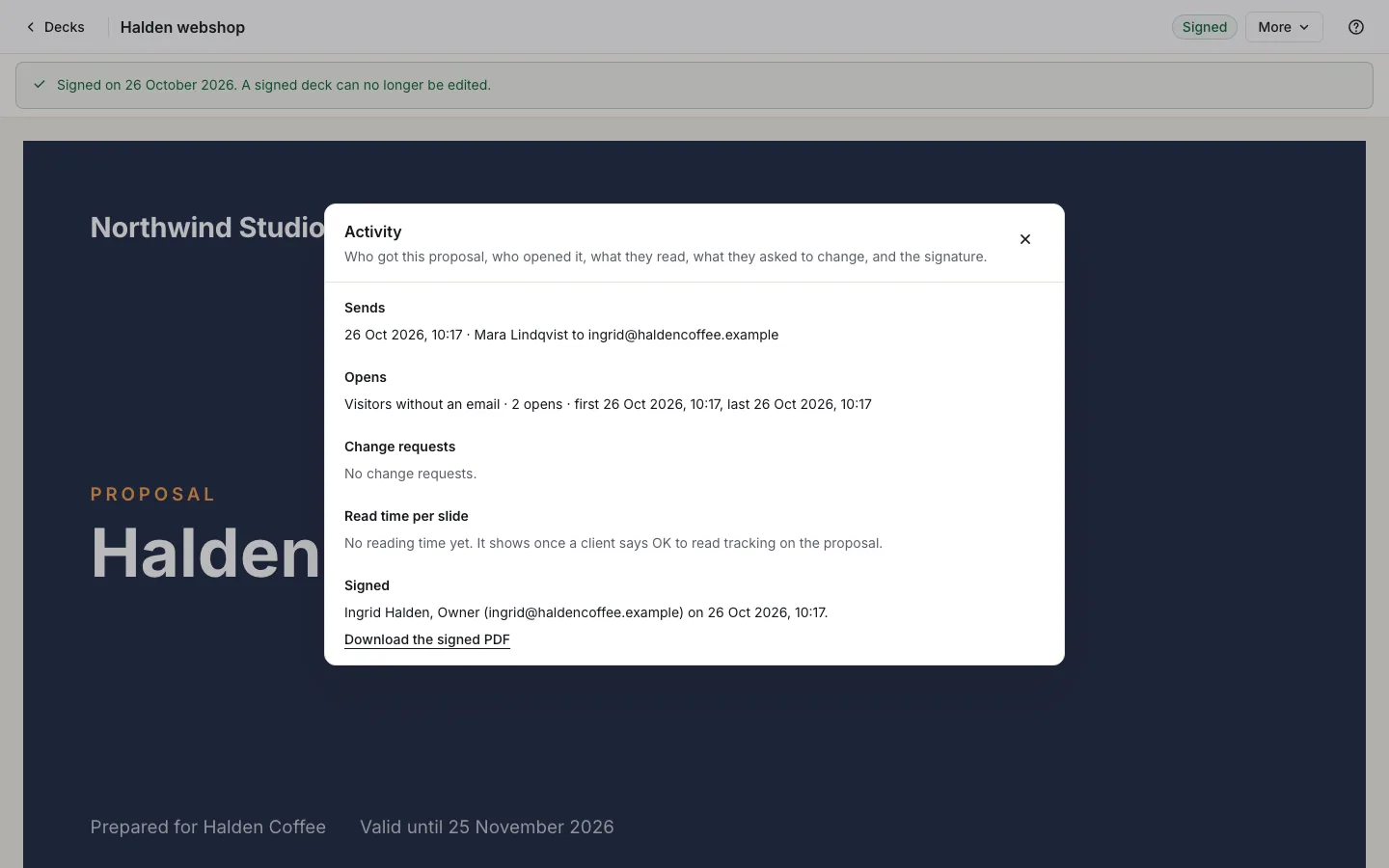
In the editor, Activity (under More) shows who you sent it to, who opened it, the read time per slide, and the signature with its PDF.
See your Overview for what needs you.
Related
- Build your first proposal From price list to a published proposal: the outline, the live preview, pricing from your price list, versions and a preview link.
- Reuse your work: cases and saved slides Short and long cases with a tagline, numbers and a client quote, and saved slides you insert from Add slide.
- Your Overview: what needs you and how it is going Needs your attention, this month against last month, the pipeline and recent activity, with the rules behind every number.
Proposals your clients actually say yes to
Propozit is free to start, with no card needed. Create your account today and see the plans on the pricing page.