Help
Your first proposal in eight steps
Templates per type of work, up to eight steps, options and prices from your price list, payment plans, the checks, and your own standards.
Updated
The quickest way to a proposal is to answer a few questions. Propozit builds the deck from your answers, your price list and your own standards. Every step saves as you go: stop on your phone and carry on at your desk.
Some types have fewer than eight steps: Team & planning only shows for the types that use it, so a fixed package, a retainer or building work has seven, Blank has six and a product quote has five.
Pick the type of work
- Select Decks, then New proposal, then Pick a type if it shows.
- Pick the type of work:
- Fixed package: one product at a set price, with optional extras.
- Fixed-price project: a project priced by who works on it, paid in parts.
- Monthly team: a team billed monthly for the time spent.
- Retainer: a monthly plan the client picks.
- Dedicated people: people who work only for this client, per month.
- Audit & rescue: urgent help to fix or take over a project.
- Building work: materials and labour per room or trade, with options and payment in stages.
- Product quote: goods with quantities, delivery and a deposit.
- Blank: start empty.
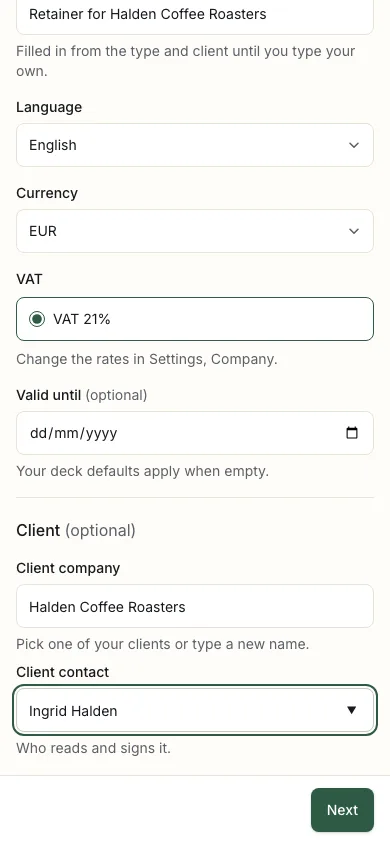
- Check the title, language, currency, VAT and Valid until.
- Under Client (optional), pick or type the client and the contact. The contact gets access to the proposal. Your clients fill in their defaults.
- Select Next.
Answer the steps
Use Back and Next, or open Steps to jump to any step.
- Challenge & approach: write the challenge the way your client said it. The approach steps are filled in for you, and you can change any of them.
- Scope: what is in and what is out. Suggestions show as chips: tick one to add it, or type your own line. Undo brings back a removed line.
- Team & planning: the roles and the phases. When it shows, you can skip it.
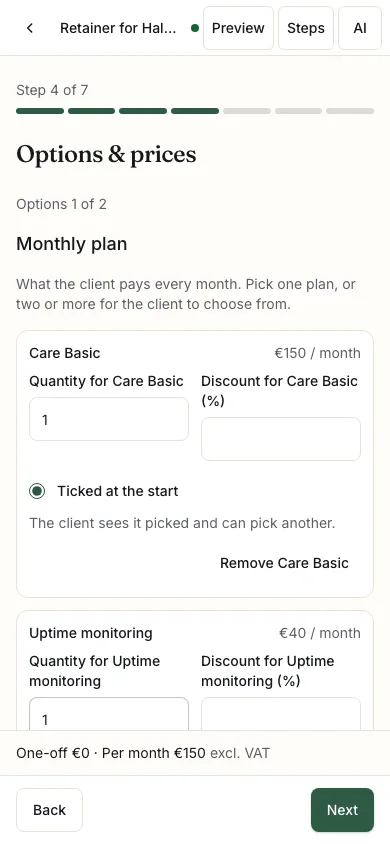
- Options & prices: one small screen per part of the price, such as the monthly plan and the optional extras. Tick products from your price list; those without a price in the proposal's currency are greyed out. For a fixed-price project, Who works on it? adds people from your price list; set their days. For a team, enter the people and a rate per month or per day. A monthly team or dedicated people can have Add-on people the client can add. The total at the bottom updates as you go.
- How the client gets it: Ticked at the start shows an option chosen when the proposal opens. Where a line can move, choose Always included or Client can add, and a note says where it went. A retainer with two or more plans asks the client to pick one.
- Payment & terms: switch on the payment plans the client picks from, set due days and your extra-work rate, and switch on commitments and Bonuses, such as "Add Branding and the SEO audit is free". Check the terms and next steps. Admins can select Make a new bonus to write a new rule. See Payment plans, VAT and the checks.
- Cases: cases that match the type of work and the client come first. Admins can select Add a case study without leaving the steps. You can skip this step. Blank has no Cases step.
Nothing in the price list yet? Select Add a line, enter a name and a price. Admins can also add it to the price list.
A step left empty or skipped leaves its slide out of the deck. Fill it in later and the slide comes back.
Check & send
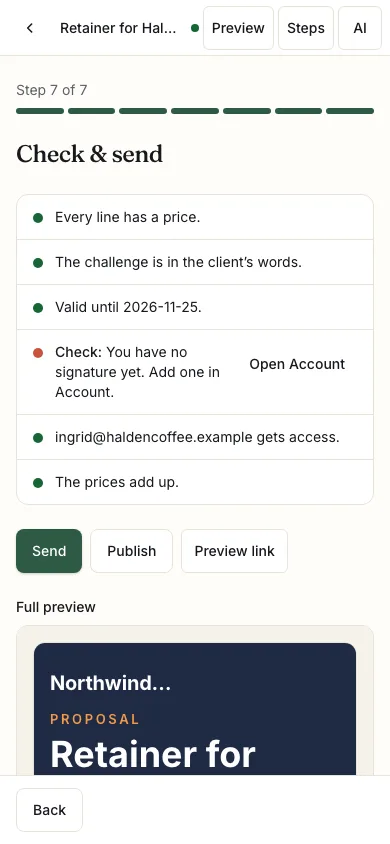
The last step lists what to look at: lines without a price, an empty challenge, a date in the past, a missing signature or contact email, and what a client would spot. Only pricing problems stop you from sending. From Open Account, Back to your proposal returns here.
Check the full preview, then select Send. See Send a proposal and get it signed for what happens next.
On a laptop
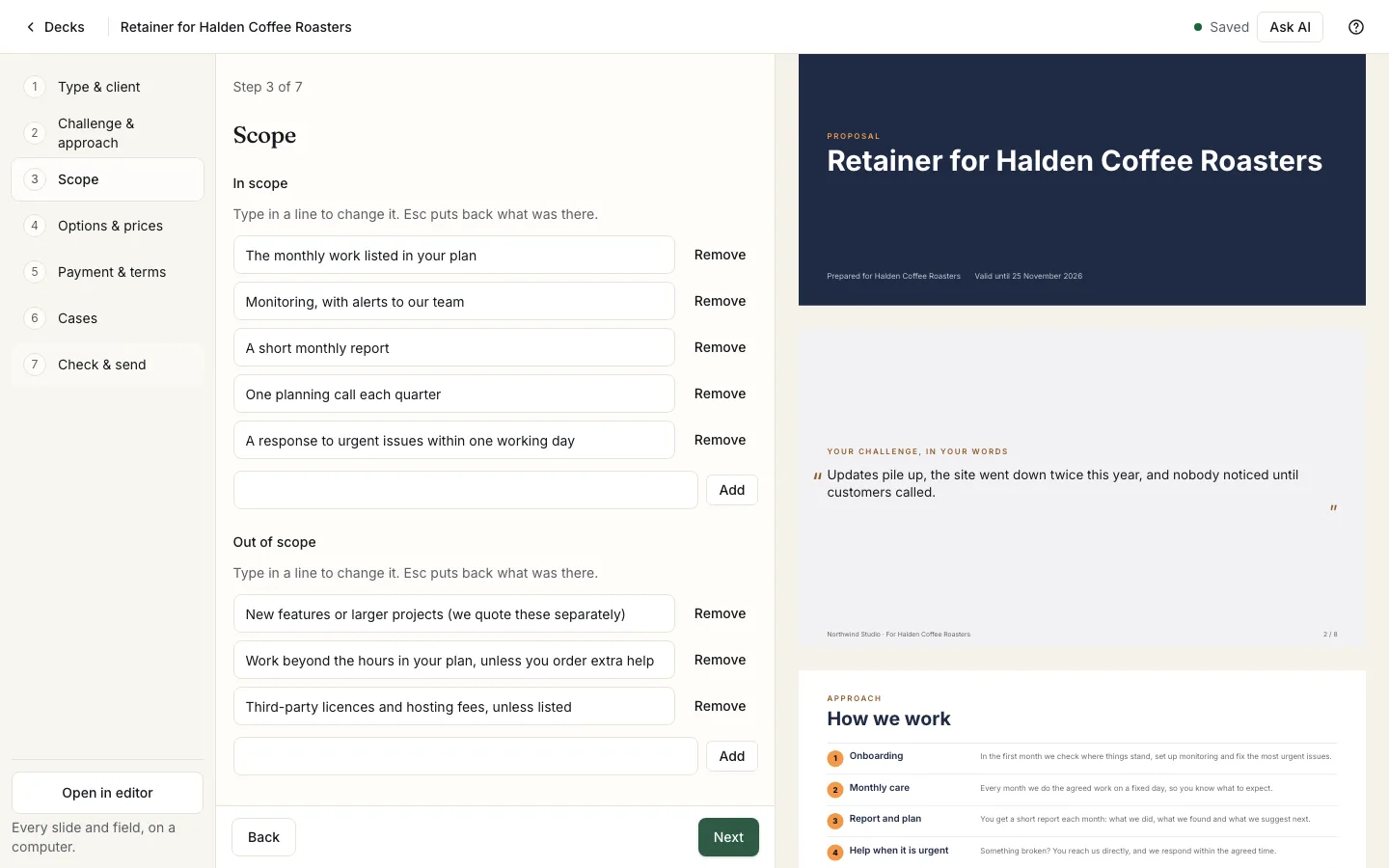
From 1024 pixels wide, the steps sit beside a live preview. Open in editor, under the steps, opens every slide and field. For headings, layouts and images, Edit this in the editor opens the step's slide. The steps never overwrite what you change in the editor.
Your standards
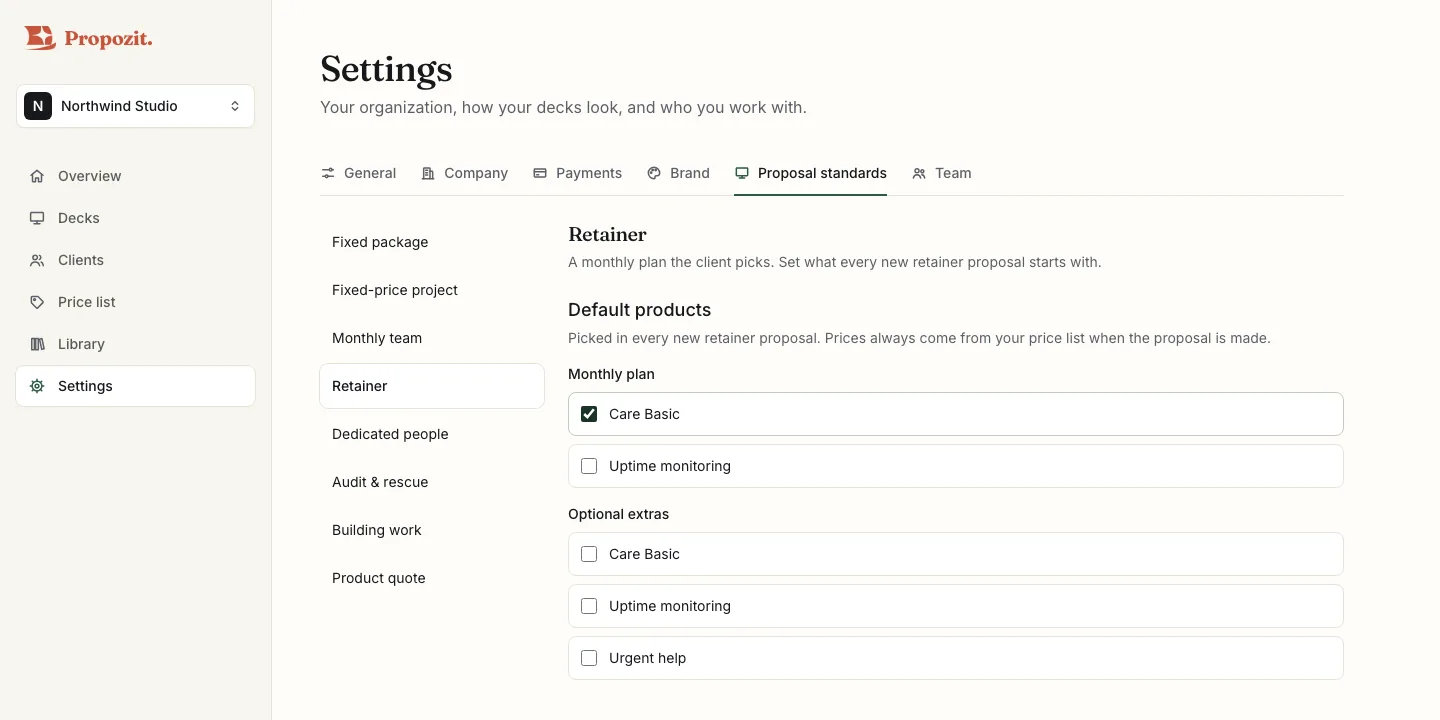
Admins can set what every new proposal of a type starts with, under Settings → Proposal standards:
- the products for each part of the price;
- the approach, scope, phases, team roles, terms and next steps, in each language;
- the deals, such as payment plans, and the cases.
Prices always come from your price list when the proposal is made. A product that has been archived, or has no price in the proposal's currency, is left out and named on the prices step.
Related
- Build your first proposal From price list to a published proposal: the outline, the live preview, pricing from your price list, versions and a preview link.
- Send a proposal and get it signed Send with your own message, unlock with an email code, signing drawn or typed, the signed PDF, and the activity panel.
- Reuse your work: cases and saved slides Short and long cases with a tagline, numbers and a client quote, and saved slides you insert from Add slide.
- Describe a proposal and get a draft What to write, what the AI picks, the Chosen, Not found and Check these lists, the daily limits and where your words go.
- Payment plans, VAT and the checks before you send Payment plans and the default, editing a plan for one proposal, due days and extra work, VAT rates, how you speak to clients, and the checks.
Proposals your clients actually say yes to
Propozit is free to start, with no card needed. Create your account today and see the plans on the pricing page.