Help
Reuse your work: cases and saved slides
Short and long cases with a tagline, numbers and a client quote, and saved slides you insert from Add slide.
Updated
On this page
Good proposals are short and specific, and they show work that proves you can do the job. The Library keeps the parts you use again and again, so each new proposal starts from your best material.
Everything is copied into a proposal when you use it. Changing the library later never changes a proposal you already made.
Cases
A case is a project that shows what you can do: the starting point, what you did and what changed.
- Select Library in the sidebar. The Cases tab opens.
- Select Add a case and pick its Kind: short or long. Give it a title, a tagline (one line under the title), the client's name and a short summary.
- For a long case study, add story sections (a heading and a text each), the results, and up to 30 images. Use Move up and Move down to change the order.
- Under Numbers, add up to 4, such as +38% and what it counts: direct bookings. Under Client quote, add what the client said, with their name and role.
- Add tags, such as Shopify or Food, separated by commas. Select Save case.
Not sure where to start? On an empty library, Add an example case adds one from the live demo for you to change.
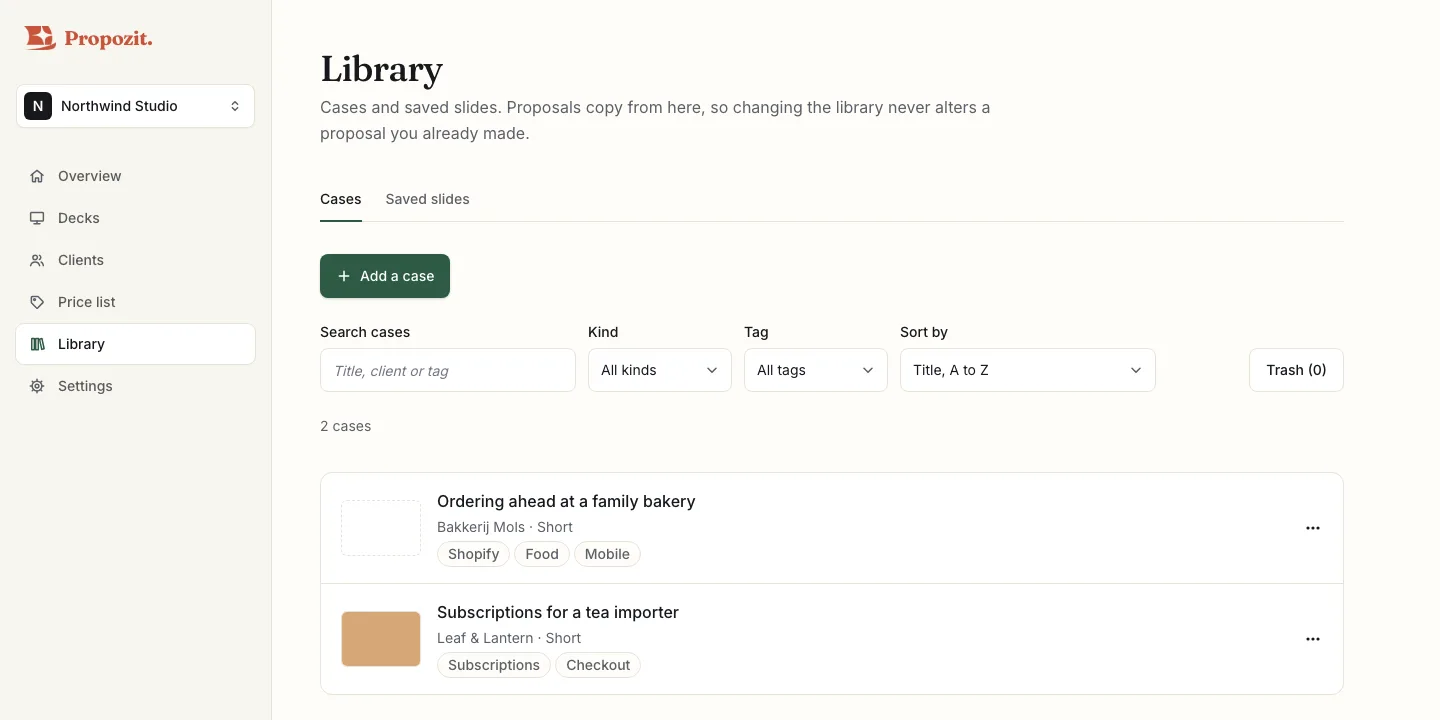
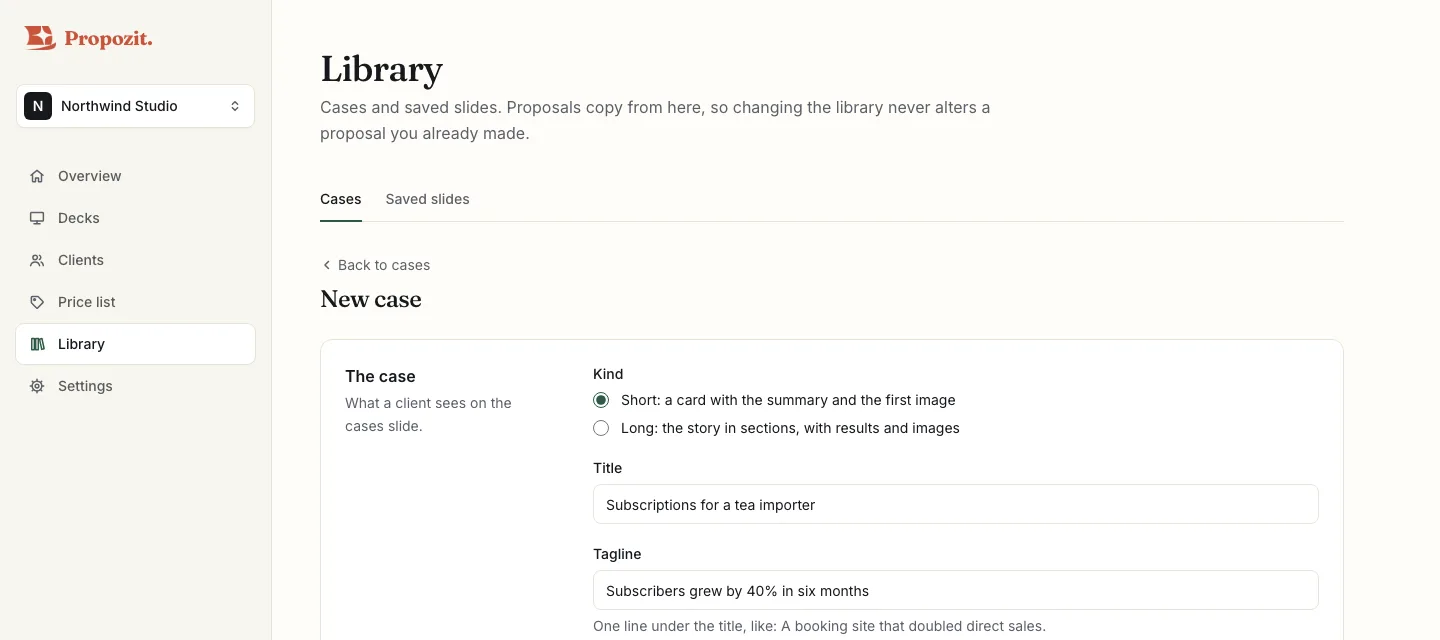
To use a case, add a Cases slide to your proposal and pick it under Add a case from your library. Search by title, client or tag on the Cases tab to find the right one.
Short and long
- In a proposal, every case is a card: the first image, the title, the tagline and the first number. To tell a long case in full, add a Cases slide set to Full story (long).
- In a portfolio, short cases are cards and each long case gets its own pages: a cover with its first image, the numbers, the story, the results, the quote and the other images. See Make a portfolio from your cases.
Clients
Clients have their own place: select Clients in the sidebar. There you keep their details, contacts, proposal defaults and own prices. See Clients and their prices.
Saved slides
Some slides hardly change between proposals: your team, how you work, your terms. Save them once.
- In a proposal, select the slide and choose Save as saved slide (owners and admins).
- Give it a name and select Save. It is saved with the proposal's language.
- In the next proposal, select Add slide. Your saved slides are at the top, the ones in that proposal's language first.
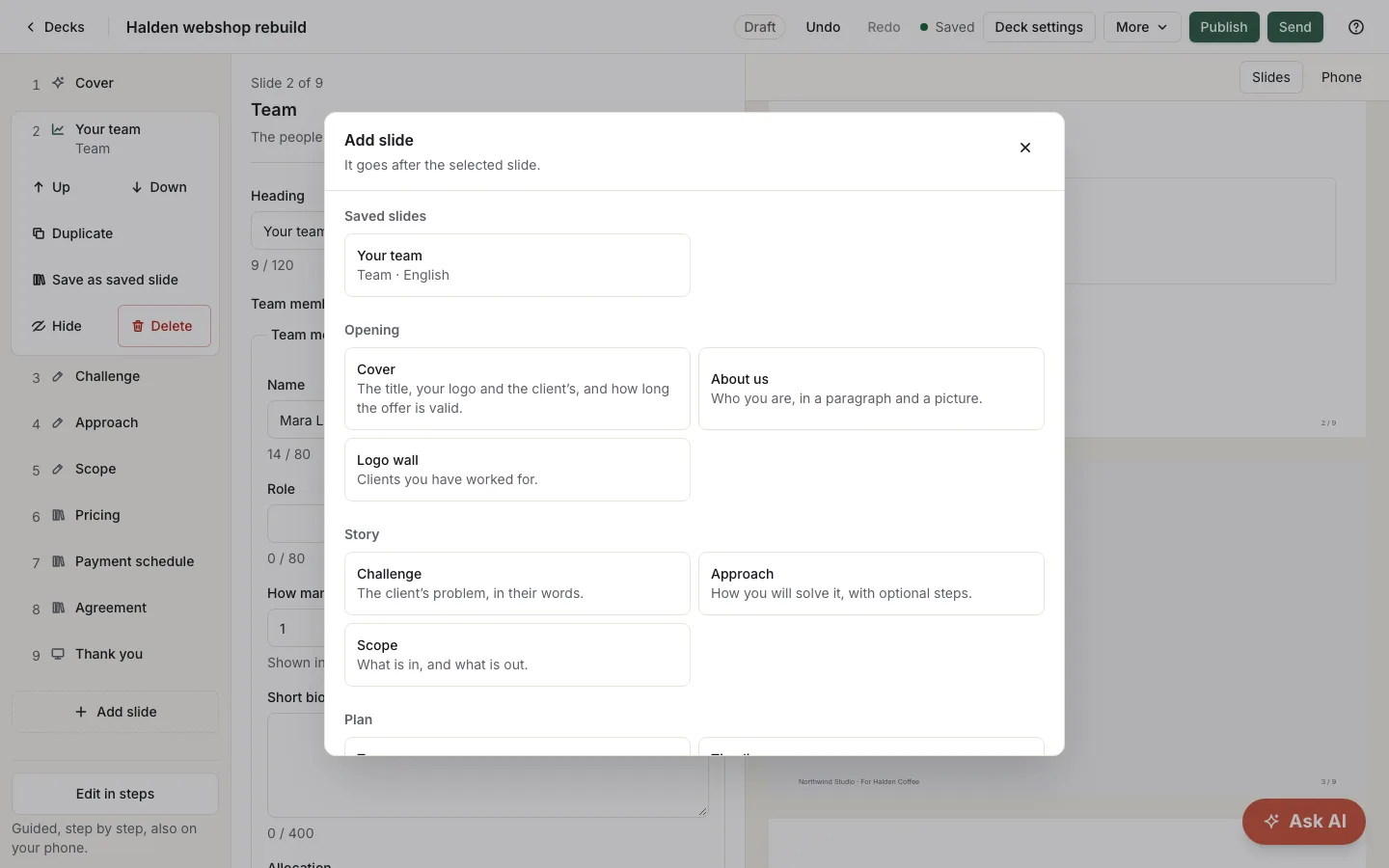
To change a saved slide, insert it, edit it in the proposal, and save it again under the same name. Propozit asks before it replaces the old one. The Saved slides tab lets you rename a saved slide, change its language, or move it to Trash. Cases move to Trash from their row's ⋯ menu too. Owners and admins can restore either within 30 days; see Find and sort your proposals.
Who can change what
Owners and admins edit cases and saved slides. Members see them and use them in their proposals.
Related
- Build your first proposal From price list to a published proposal: the outline, the live preview, pricing from your price list, versions and a preview link.
- Make a portfolio from your cases Pick and order your cases, get a portfolio deck, and send it with an email code, opens and read time. No prices and no signing.
- Clients and their prices The client list, a client's details, contacts and defaults, a discount and own prices, and starting a proposal from a client.
- Invite your team Send an invitation by email, pick a role, and manage who has access from the Team tab.
Proposals your clients actually say yes to
Propozit is free to start, with no card needed. Create your account today and see the plans on the pricing page.