Help
Clients and their prices
The client list, a client's details, contacts and defaults, a discount and own prices, and starting a proposal from a client.
Updated
On this page
Clients in the sidebar holds the companies you send proposals to. Each client keeps their details, the people you deal with, the language, currency and VAT their proposals use, and the prices you agreed with them. A new proposal for a client starts with all of it filled in.
The client list
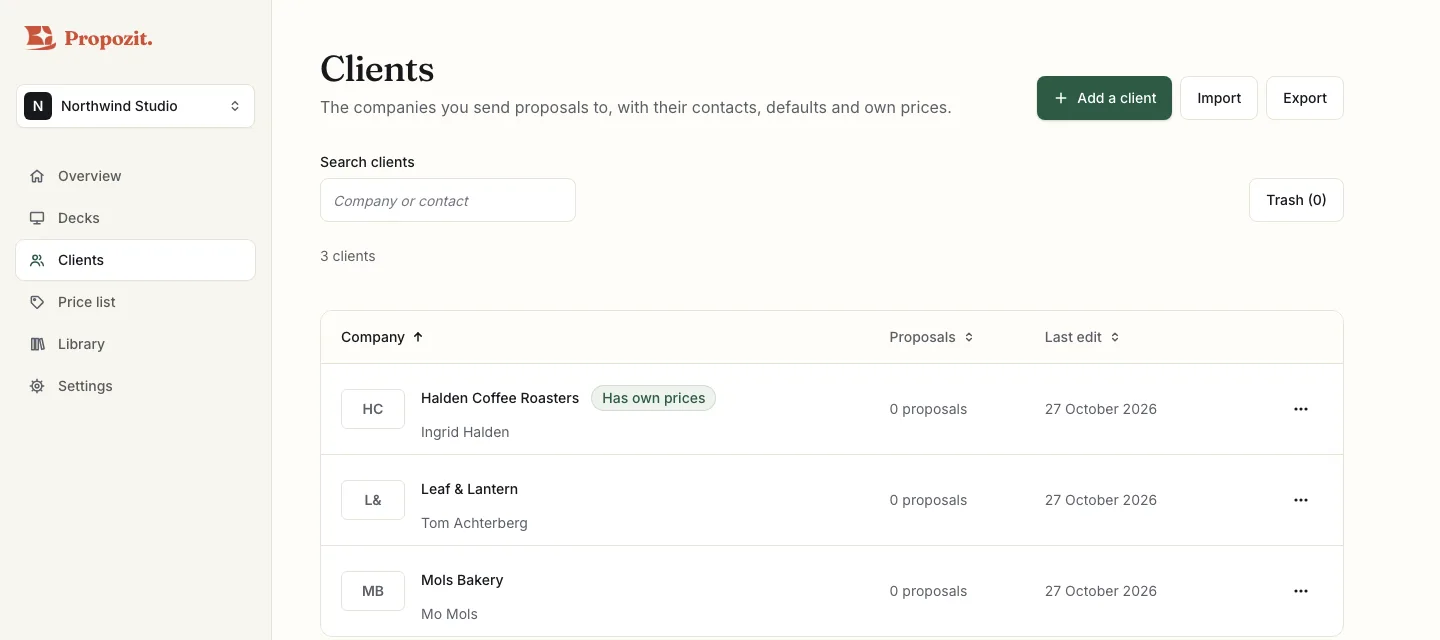
Select Clients in the sidebar. Each row shows the logo, the company, the main contact, the number of proposals and the date of the last one. Has own prices shows when a client has a discount or their own prices.
Type in Search clients to find a client by company or contact.
A client is also added for you when you create a proposal for a new company. Select Add a client to add one yourself.
A client's page
Select a client to open their page. It has these parts:
- Details: the company, the website and the logo. The logo appears on the cover of their proposals. Notes are for your team only: your client never sees them.
- Contacts: the people you deal with. The first contact fills in new proposals.
- Proposal defaults: the language, currency and VAT rate for new proposals. Leave one on Organisation default to use your organization's setting.
- Prices: a discount and this client's own prices.
- Proposals: this client's proposals, newest first, with their status.
Select Save client to save the details, contacts and defaults.
If an admin later removes a VAT rate a client uses, that client goes back to the organization's default rate.
A discount and own prices
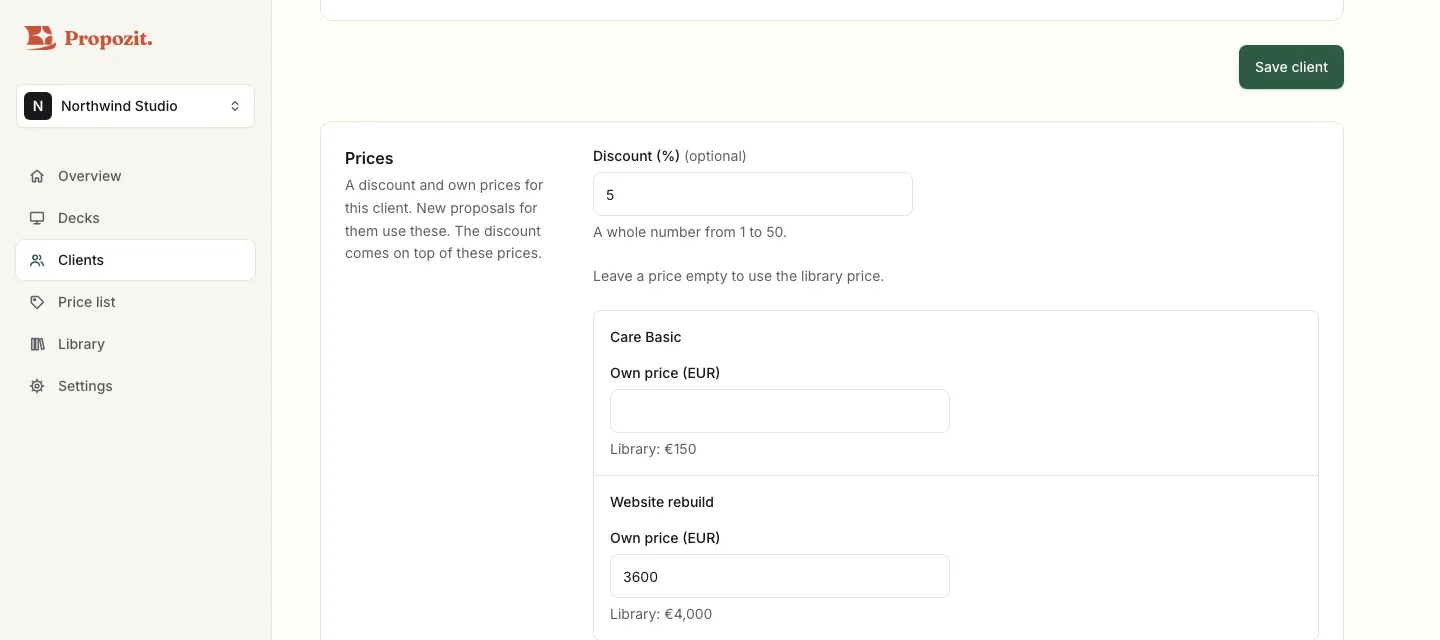
Under Prices, owners and admins can set:
- Discount (%): a whole number from 1 to 50. New proposals for this client start with this discount on the total. Your client sees it as the proposal's discount line, and you can change or remove it in each proposal.
- Own price for any product in your price list, per currency. Your price list's amount shows beside it, such as "Library: €4,000". Leave it empty to use that amount.
The discount comes on top of these prices: the own price sets each line, then the discount applies to the total. A product that is "On request" stays on request, unless you give this client an own price for it. A currency without an own price uses your price list.
Select Save prices. Members see the discount and own prices but cannot change them.
Start a proposal from a client
On a client's page, select New proposal. Pick the type of work, and the first step is already filled in: the company, the main contact and their email, and the client's language, currency and VAT. Anything the client leaves empty uses your organization's default. Lines from your price list use the client's own prices, and the proposal starts with their discount.
You can also type a client's name in Client company in the first step of any new proposal. Their language, currency and VAT fill in, but only the fields you have not changed yourself.
To have the AI draft it, switch to Describe it. It says "This proposal is for" and the client's name, and the draft uses the client's prices and discount. See Describe a proposal and get a draft.
Prices are copied into each proposal
A proposal keeps the prices it was made with. Changing a client's prices later never changes a proposal you already made, whether it is a draft or sent.
If you change the client of a draft, the lines already in it keep their prices, and the step says "Lines you add from now use this client's prices." The draft keeps its language and currency. Its VAT rate changes to the new client's rate if they have one and you have not changed the VAT in this step.
Who can change what
Everyone in your organization can add clients and edit their details, contacts and defaults. Owners and admins upload logos, set the discount and own prices, and move clients to Trash. Before a client moves to Trash, Propozit tells you how many proposals use them. While the client is in Trash, those proposals show no client.
Owners and admins can restore a client from the Trash within 30 days, and the proposals show the client again. Delete forever deletes the client for good, and the proposals keep no client. See Find and sort your proposals.
What clients are not
Clients are a list of the companies you make proposals for. You can import and export clients as a spreadsheet (CSV); see Import and export. There is no link to a CRM, and clients cannot sign in to Propozit.
Related
- Your first proposal in eight steps Templates per type of work, up to eight steps, options and prices from your price list, payment plans, the checks, and your own standards.
- Payment plans, VAT and the checks before you send Payment plans and the default, editing a plan for one proposal, due days and extra work, VAT rates, how you speak to clients, and the checks.
- Describe a proposal and get a draft What to write, what the AI picks, the Chosen, Not found and Check these lists, the daily limits and where your words go.
Proposals your clients actually say yes to
Propozit is free to start, with no card needed. Create your account today and see the plans on the pricing page.