Help
Find and sort your proposals
Search, filters and sort live in the address, so a view can be shared or bookmarked. Duplicate opens the copy. Trash keeps things for 30 days, and signed proposals are kept.
Updated
Every list in Propozit has the same toolbar: Decks, Clients, Price list, and Cases and Saved slides in the Library. This article uses Decks as the example.
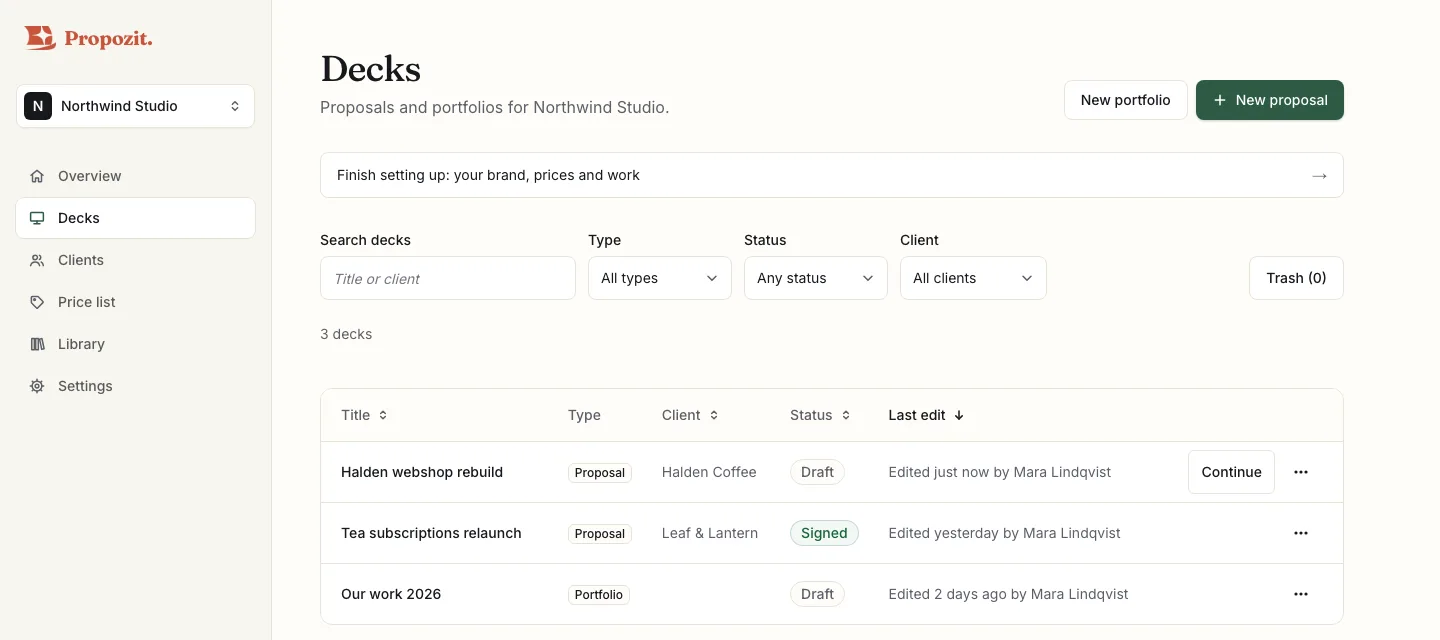
Search, filter and sort
- Search finds a deck by its title or its client's name, as you type.
- Filters: Type (proposals or portfolios), Status (Draft, Published, Sent, Opened, Signed, Declined or Expired) and Client, including No client.
- Sort: select a column heading, such as Title or Last edit, and select it again to turn the order round. On a phone, use Sort by. The newest edit comes first until you choose.
- Clear filters shows when a search, filter or sort is on, and puts the list back as it was.
The count above the list says how many decks match.
The address keeps your view. Your search, filters and sort are part of the page's address. Reload the page and the list stays as it was, and the browser's Back button undoes the last change. To share a view with a colleague or keep it for later, copy the address or bookmark it.
The Type column shows whether each deck is a Proposal or a Portfolio. On a phone, each card shows it too.
Duplicate a proposal
Open a deck's ⋯ menu and choose Duplicate….
- Change the title, which starts as "Copy of" and the original title.
- Keep the client, pick another one or type a new company. A new company is added to your clients when you select Duplicate.
- Select Duplicate. The copy opens in the editor.
The copy starts as a draft, with the slides, prices, language, currency and VAT rate of the original. Its valid-until date is kept if it hasn't passed; otherwise the copy gets your standard validity. The prices are copied as they are, even for another client, so check them. Sends, views and signatures stay with the original.
The ⋯ menu also has Open, and Copy client link once a deck is published.
Trash
Decks, clients, cases and saved slides go to the Trash first, where they stay for 30 days. Move to Trash is in each row's ⋯ menu.
- A deck moves at once, and a message says so, with an Undo button, for about 10 seconds. A client or a case asks first; for a client, it says how many proposals use them.
- Trash (n) at the top of the list shows what is in it: who moved each item and when, and the day it is deleted for good.
- Restore puts an item back where it was, in the same place in the list.
- Delete forever deletes one item for good, and Empty Trash deletes everything in that list's Trash. Both ask first, and both can't be undone. Only owners and admins can use them.
- After 30 days in the Trash, an item is deleted for good on its own.
Signed proposals are kept: on a signed proposal, Move to Trash can't be chosen, and the menu says why.
Who can do what. Any member can see the Trash, and move decks to it and restore them. Clients, cases and saved slides are moved and restored by owners and admins. Products are not moved to Trash: you archive them in the price list, as before.
A proposal in the Trash. When you move a sent proposal to Trash, its client link stops working at once. Your client sees "This proposal is no longer available". Restore it and the same link works again, with its views and history.
While a proposal is in the Trash, it is left out of your Overview numbers and out of the API, and no webhook events are sent for it.
A client in the Trash. While a client is in the Trash, their proposals show no client. Restore the client and the proposals show them again. You can add a new client with the same name meanwhile; the one in the Trash then can't be restored until you rename the new one.
Collapse the sidebar
On a screen at least 1024 pixels wide, select Collapse sidebar at the bottom of the sidebar, or press [. The sidebar becomes a narrow strip of icons, and each one shows its name when you point at it. Press [ again, or select Expand sidebar, to bring it back. Propozit remembers your choice on each device. The tour always shows the full sidebar.
See also Send a proposal and get it signed and Clients and their prices.
Related
- Send a proposal and get it signed Send with your own message, unlock with an email code, signing drawn or typed, the signed PDF, and the activity panel.
- Clients and their prices The client list, a client's details, contacts and defaults, a discount and own prices, and starting a proposal from a client.
- Reuse your work: cases and saved slides Short and long cases with a tagline, numbers and a client quote, and saved slides you insert from Add slide.
Proposals your clients actually say yes to
Propozit is free to start, with no card needed. Create your account today and see the plans on the pricing page.